Build Your AI-Powered Second Brain
A comprehensive, step-by-step guide to setting up Claude CoWork as a personal operating system. Based on 25+ iterations, 20+ research sessions, and months of real-world use. Want the short version first? Read What a Tuesday Looks Like When AI Runs Your Life.
What Is Claude CoWork?
(And what it isn't.)
Prompt in, answer out. You stay in the conversation the entire time. Brilliant for brainstorming, drafting, quick thinking. You are always in the loop.
Lives inside your terminal, writes and executes real code, manages repositories. Built for engineers. Not what we're doing here.
Non-technical interface, same autonomous execution engine underneath. You delegate a task, it breaks it into subtasks, spins up a virtual machine, and drops the finished output into your folder while you step away.
Chat is a conversation. CoWork is task delegation. Completely different relationship. Completely different results. The moment that distinction lands, you'll look at CoWork differently.
Before You Start
Make sure you have these three things in place:
Every file you create in this guide — your Global Instructions, CLAUDE.md, memory files, folders, skills, automations — lives inside your Project. Because a Project remembers across sessions, Claude picks up your context every time instead of starting cold. Pick a spot you'll remember (Desktop is easiest), name it something obvious, and start every session from your Project.
You're no longer limited to a single folder. A CoWork Project can mount several at once — say, your writing folder and your research folder — and Claude reads and writes across all of them in the same session. Add or remove folders anytime from the Project's settings.
Here's what the CoWork home screen looks like once you're in:
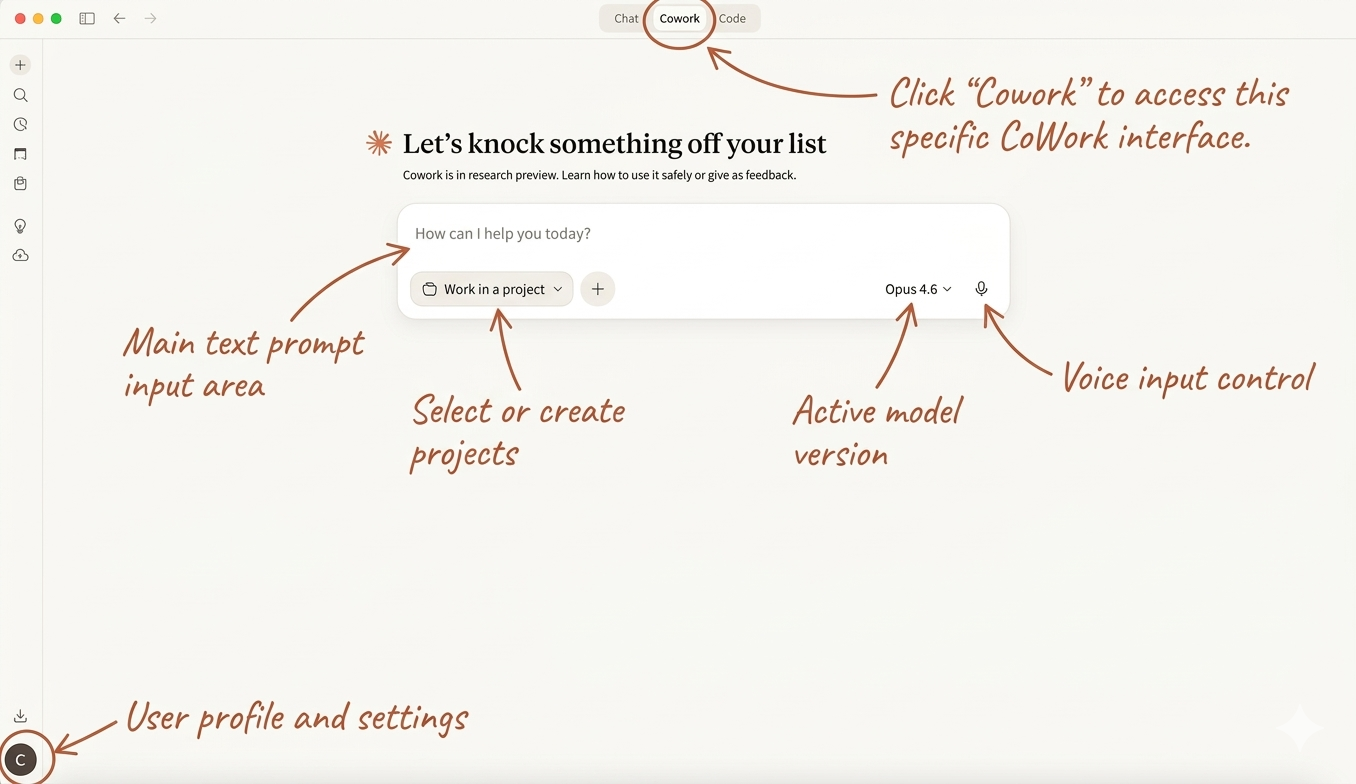
The CoWork home screen — where you start sessions and select your workspace folder.
You'll see a model picker in the CoWork interface. Here's the cheat sheet:
Opus 4.8 thinks deeply on its own — adaptive thinking is always on. On Sonnet and Haiku, toggle on "extended thinking" for hard problems so Claude reasons through them instead of rushing to an answer.
The Einstein rule: don't put Albert Einstein on kitchen duty. Match the model to the task.
How the System Works
Your CoWork second brain has three core ingredients: context (who you are), instructions (how Claude should behave), and automations (work that happens while you're away). Everything else builds on these.
The 11 layers of your system
Here's what a session looks like once you're up and running:
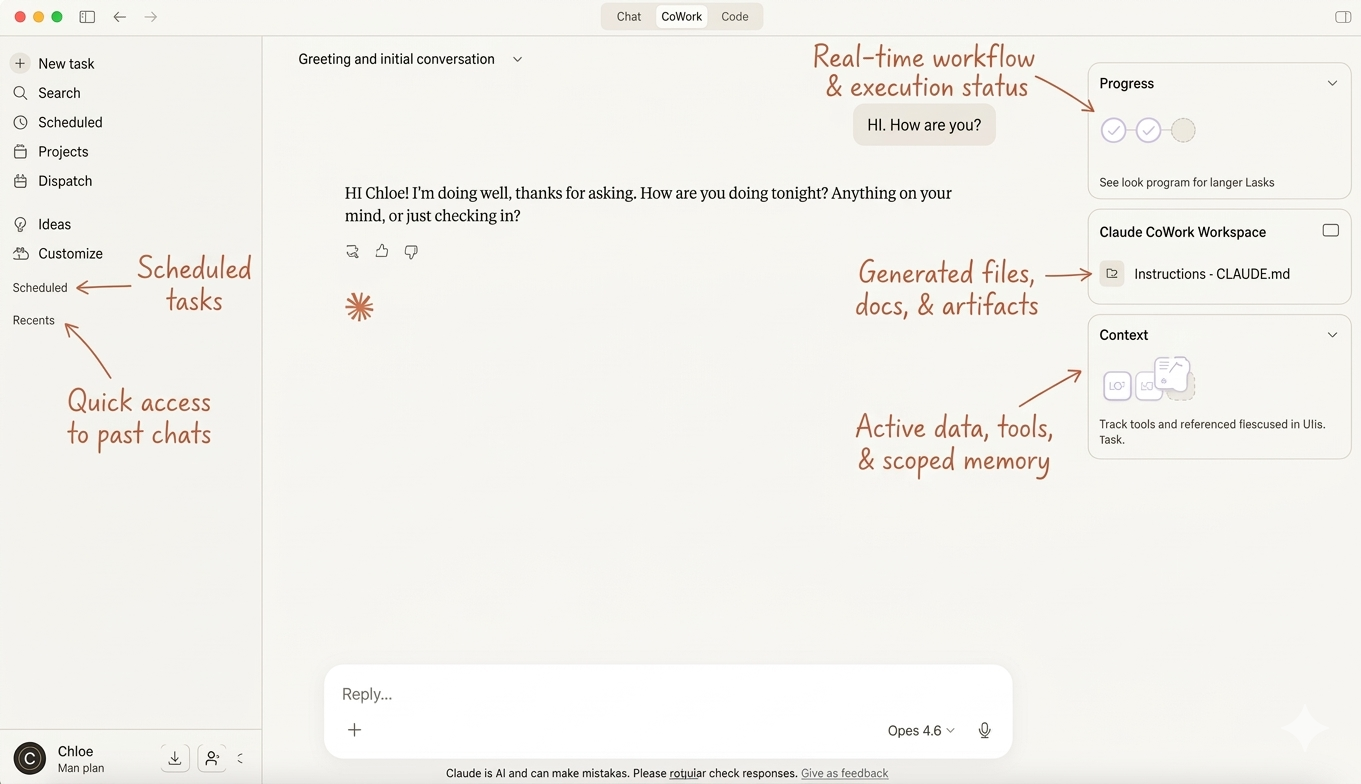
A CoWork session — your conversation, progress tracker, workspace files, and context panel.
Before you start: here's how this works
Read the whole guide once to understand the layers. Then open a CoWork session and work through it section by section WITH Claude.
Every section below has a ready-to-paste prompt you can copy straight into CoWork. Claude will do the heavy lifting — interviewing you, drafting files, building your system. You don't have to think of what to say. Just paste the prompt, answer Claude's questions, and move to the next section.
You don't need to do everything in one sitting. Start with Discovery, build from there, and refine as you go.
Pro Tip
Already been using ChatGPT or Gemini? Start here.
Import your conversation history and skip half the setup work.
All those questions you asked, the emails you drafted, the things you researched, the way you phrased your prompts. That's months of data about how you think, what you care about, and how you actually talk. Instead of starting the discovery process from scratch, you can import that into Claude's memory and give it a head start on knowing you.
This step is optional. If you're brand new to AI, skip ahead to the Discovery Process below. But if you've got history with another tool, the 5 minutes it takes to import will save you time on everything that follows.
Step 1: Export Your Data
Coming from ChatGPT
ChatGPT has a built-in data export. Click your profile icon in the bottom left, go to Settings > Data controls, and click "Export" next to "Export data."
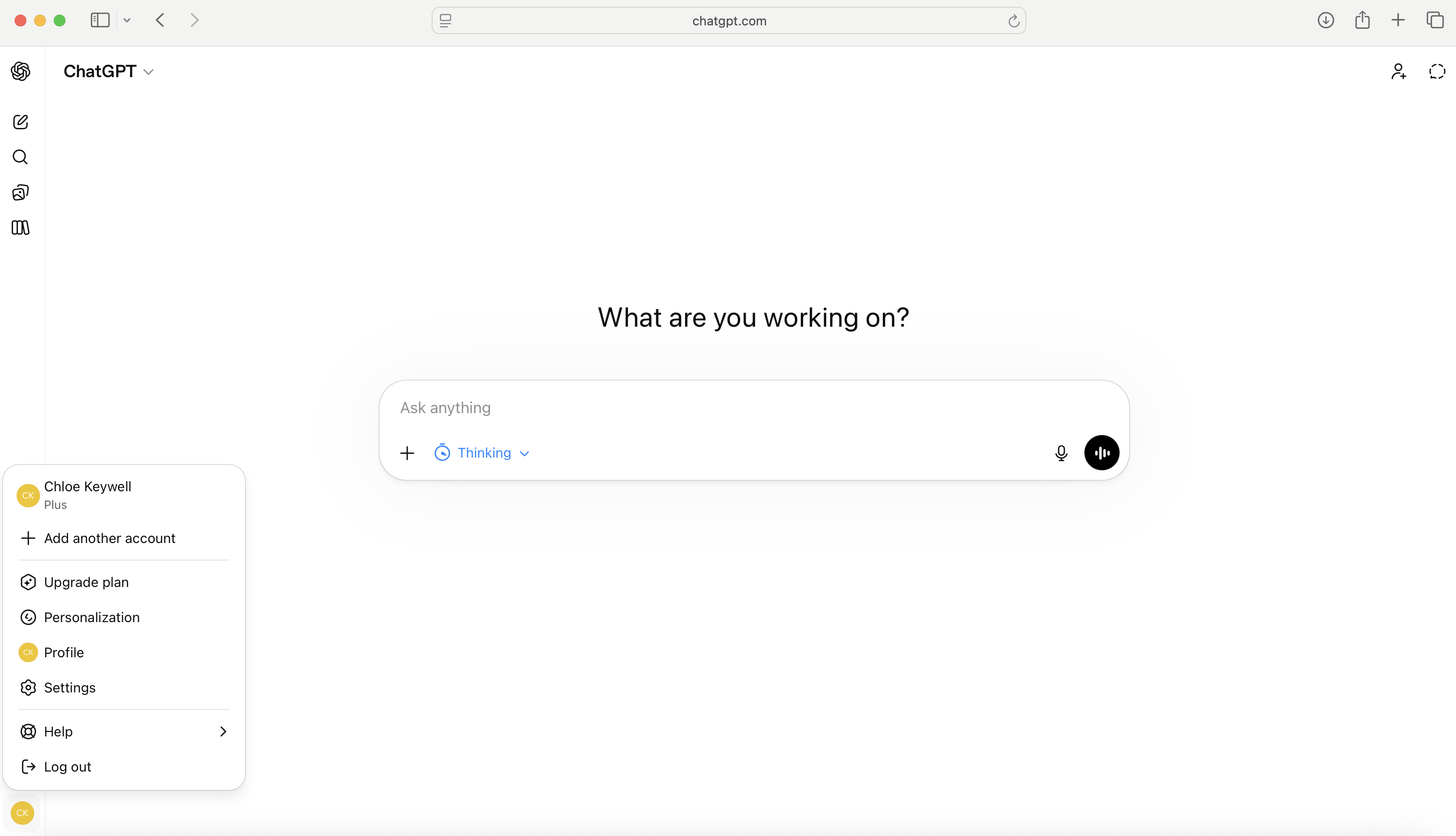
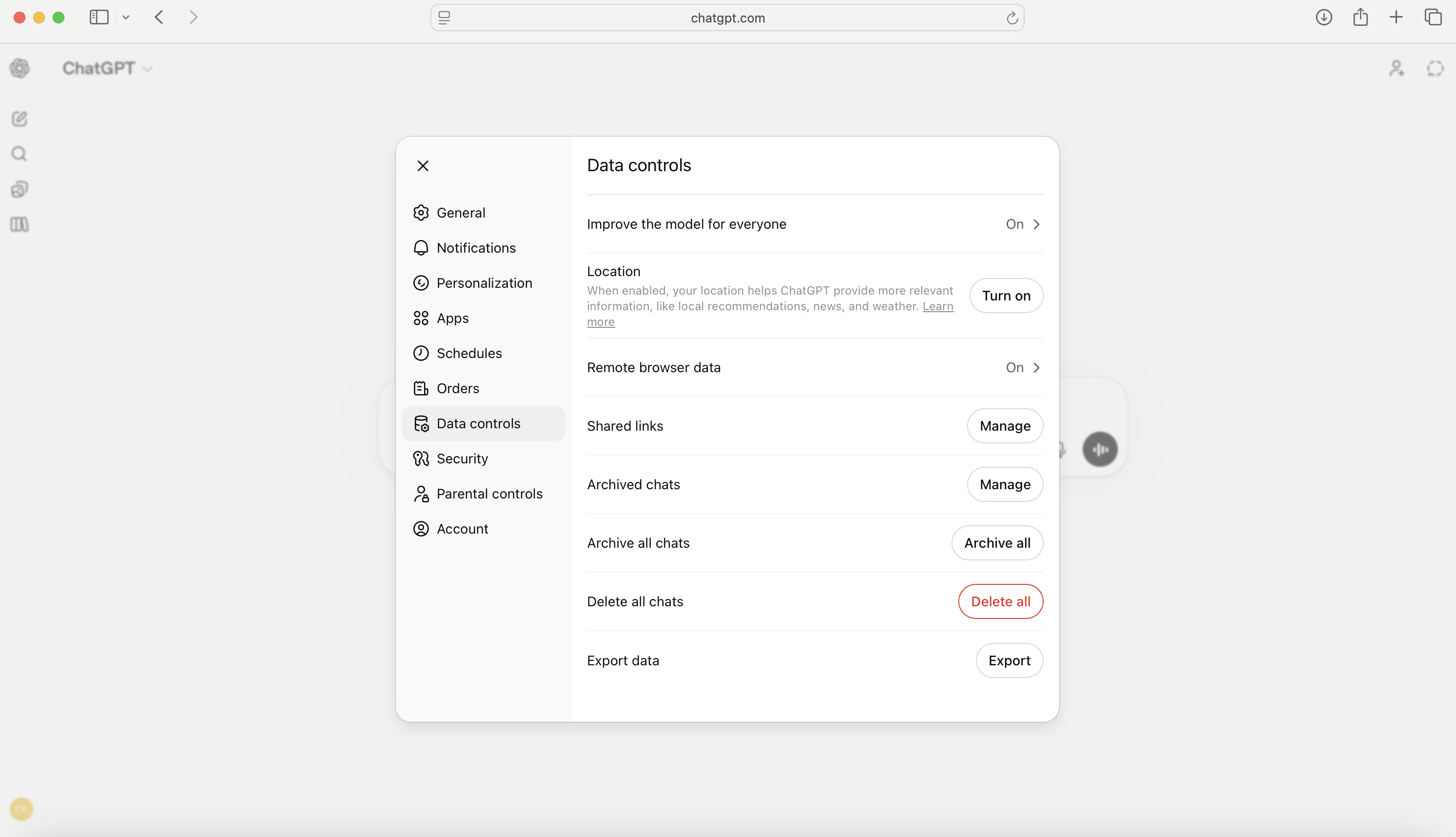
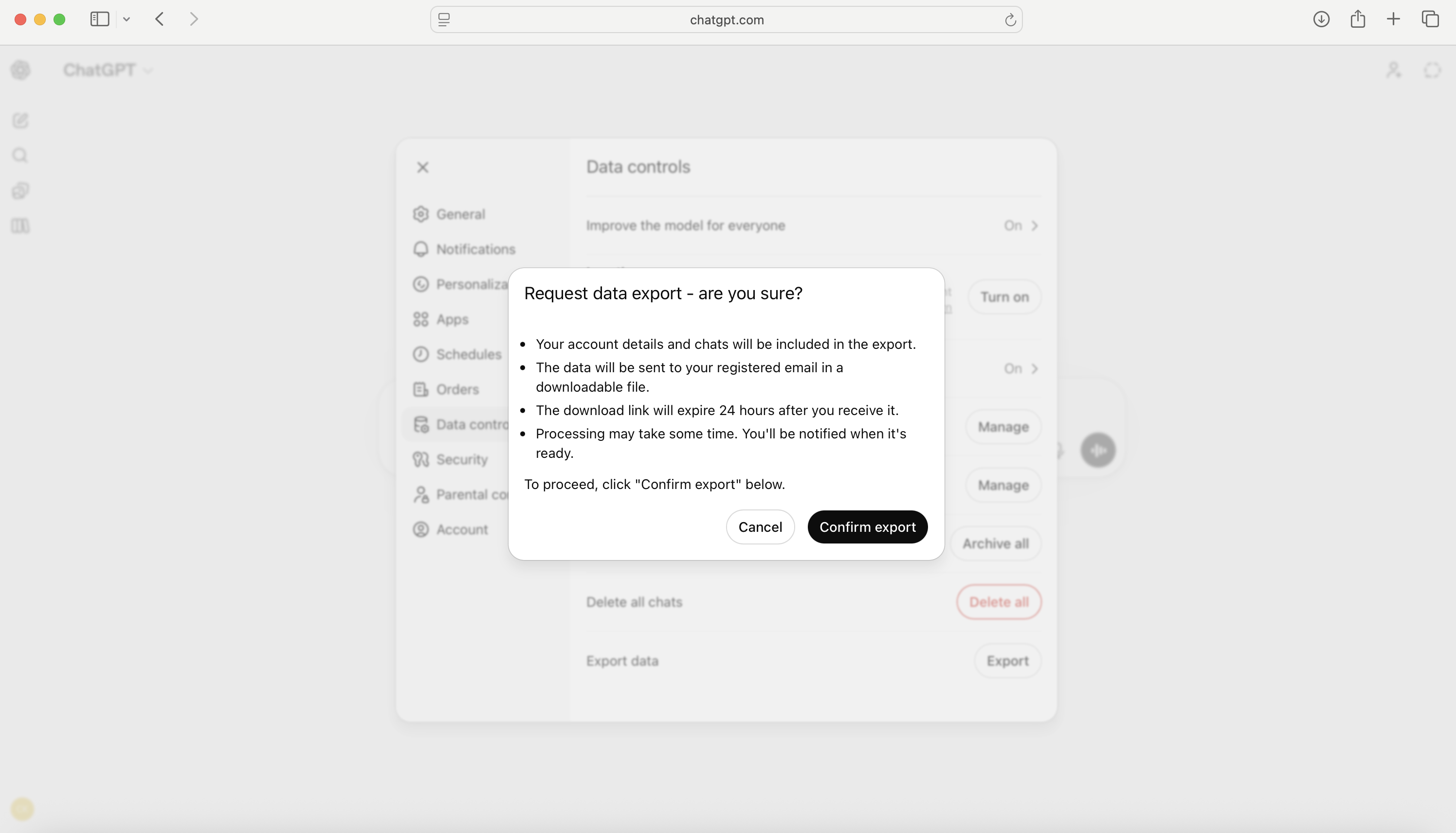
Profile icon → Settings → Data controls → Export data → Confirm export
You'll get a confirmation dialog. Click "Confirm export" and ChatGPT will email you a download link with a ZIP file containing your full conversation history.
Coming from Gemini, Grok, or another AI
Most other AI tools don't have a built-in export yet. Instead, open a conversation with your AI and send it this message:
It'll spit out a block of text with everything it knows about you: your preferences, writing style, projects, people you mention, corrections you've made. Copy that entire block.
Step 2: Import It Into Claude
In Claude Desktop, go to Settings > Capabilities > Memory and click "Import memory from other AI providers."
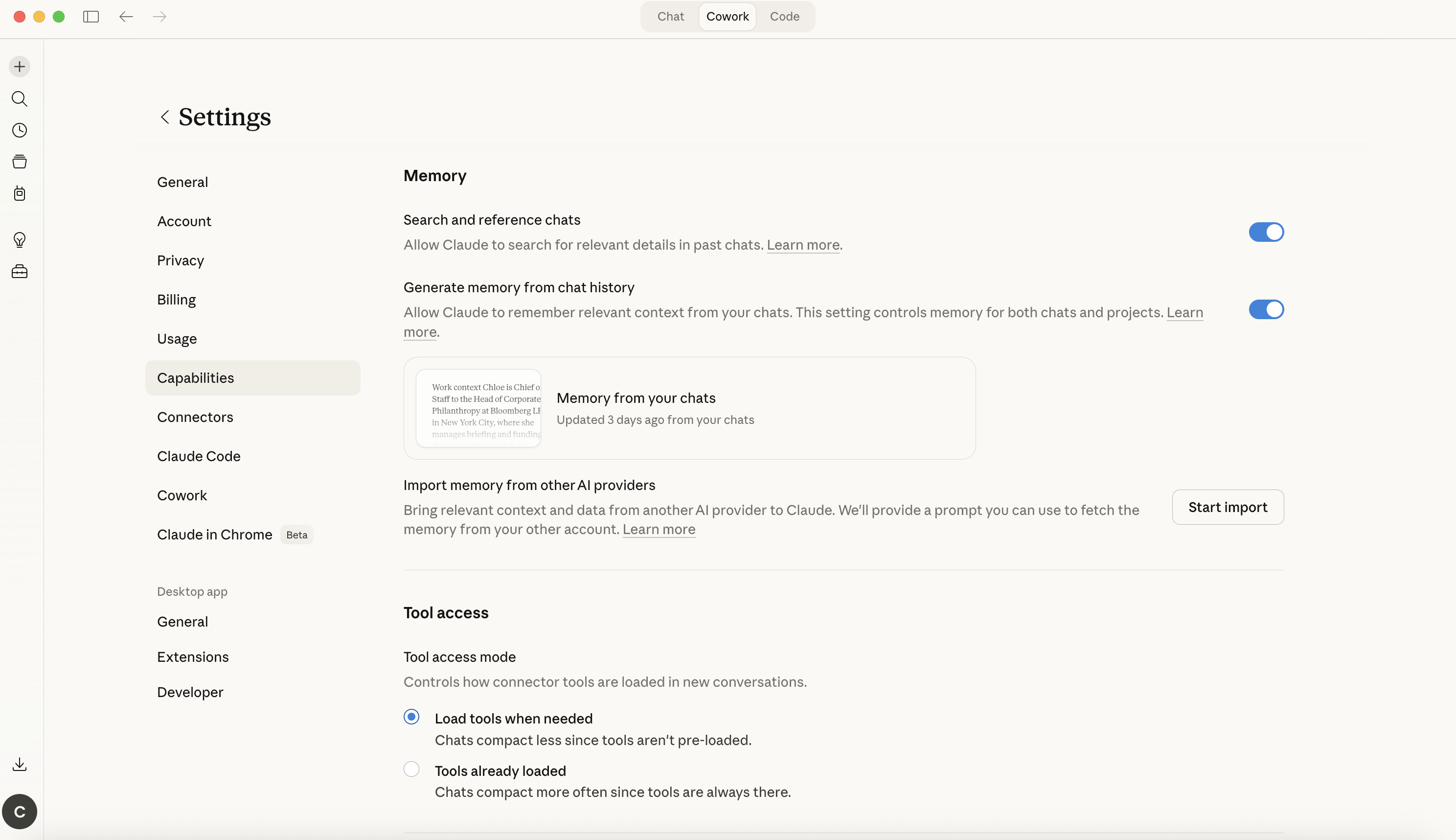
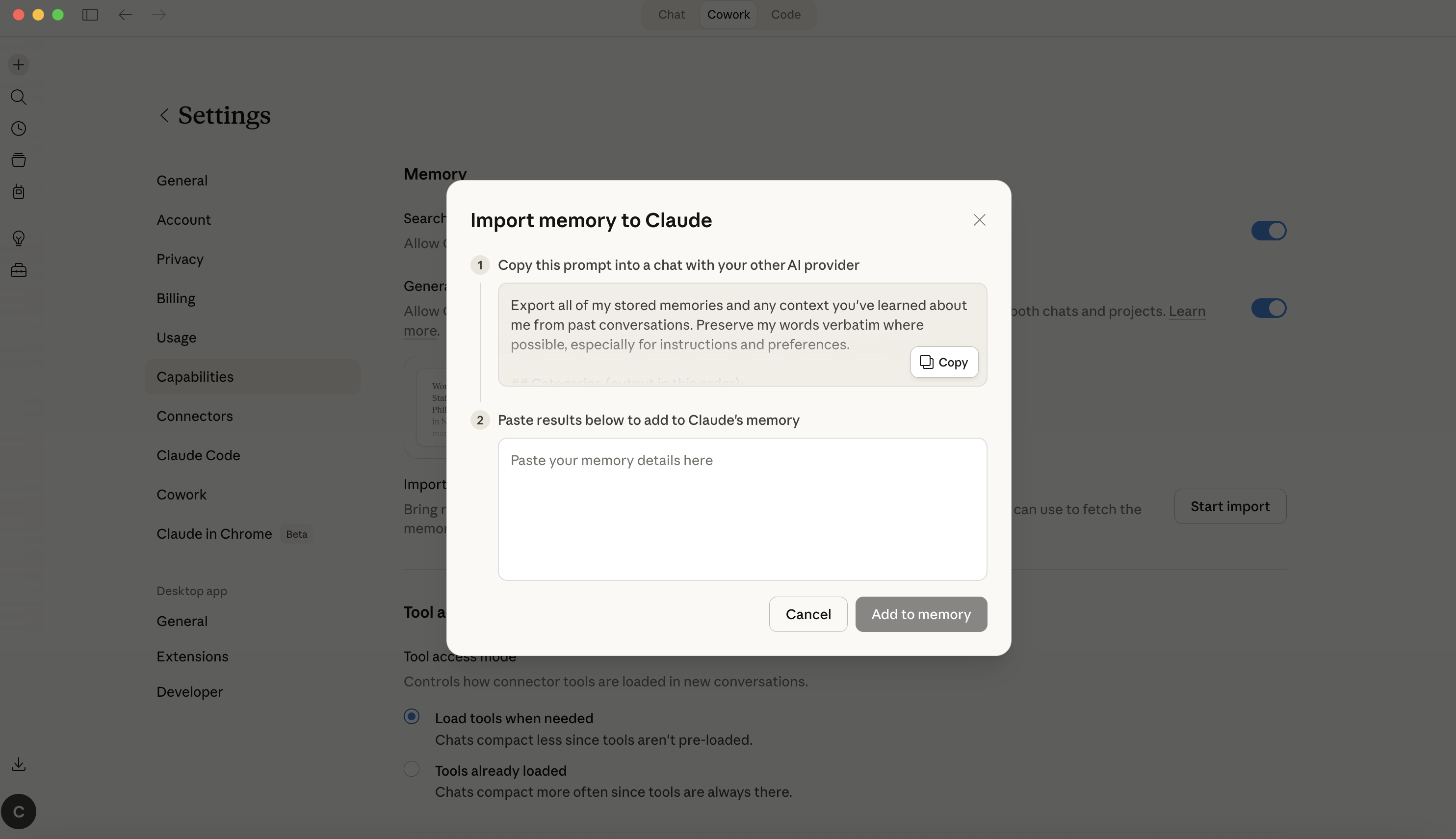
Settings → Capabilities → Memory → "Import memory from other AI providers" → Paste and click "Add to memory"
You'll see a text box. If you exported from ChatGPT, Claude's import tool will walk you through it. If you used the prompt method for Gemini or Grok, paste the text block you copied. Either way, click "Add to memory" and Claude will process everything and store it as individual memory entries. You can click "Manage edits" to review what it saved.
Then Start Discovery
Once the import is done, head straight to the Discovery prompts in the next section. The first prompt is built to handle both paths: if you imported data, Claude will start by showing you everything it thinks it knows and ask you to confirm, correct, or update it before moving on. If you didn't import anything, it skips that step and interviews you from scratch. Either way, you end up in the same place.
The memory import is experimental and Claude may not capture everything perfectly. That's fine. The discovery process will fill in any gaps. Think of the import as a head start, not a replacement for discovery.
Also, before you export, skim through what your AI spits out. If it includes anything sensitive (passwords, financial details, work stuff you shouldn't share), edit those out before pasting into Claude.
The Discovery Process
Before you fill in a single template, you need to have the right conversations with Claude. The quality of your system depends entirely on the quality of information you put into it.
Here's what to do: Open Claude Desktop, click Cowork at the top, and start a new session. Then copy the first prompt below and paste it into the text box. Claude will start asking you questions — just answer them naturally. When you finish one prompt, paste the next one into the same chat and keep going.
Do all 4 Discovery prompts in the same CoWork chat. Don't start a new session between them — Claude needs the context from each conversation to build on the next. Paste one prompt, answer the questions, then paste the next when you're ready. You can take breaks, just come back to the same session.
Who You Are (15-20 min)
Questions covered in the prompt above: your work, goals, daily routine, current tools, what's broken, and what you've tried before. If you imported memory, Claude validates all of that before asking questions.
How You Work (10-15 min)
The Personal Stuff (10-15 min)
Your AI Relationship (5-10 min)
Without this step, every time you open a new session you'd have to re-explain who you are, what you're working on, and how you like things done. The Discovery conversation gives Claude enough context about your life that it can actually help you — not just answer generic questions. Think of it like onboarding a new assistant: the more they know upfront, the less you have to repeat yourself later. You don't need to get everything perfect right now. The system is designed to learn and improve as you use it.
Global Instructions
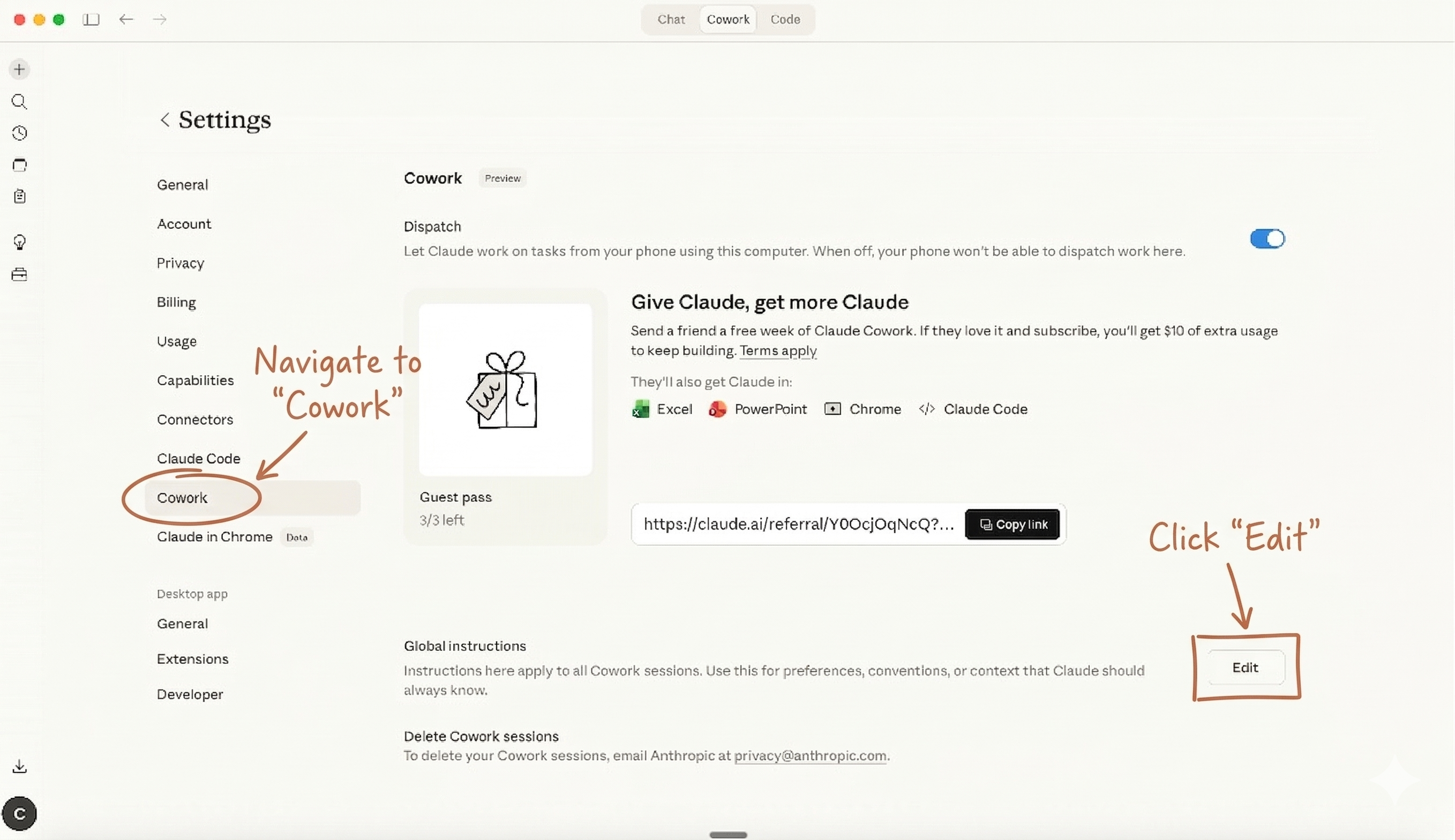
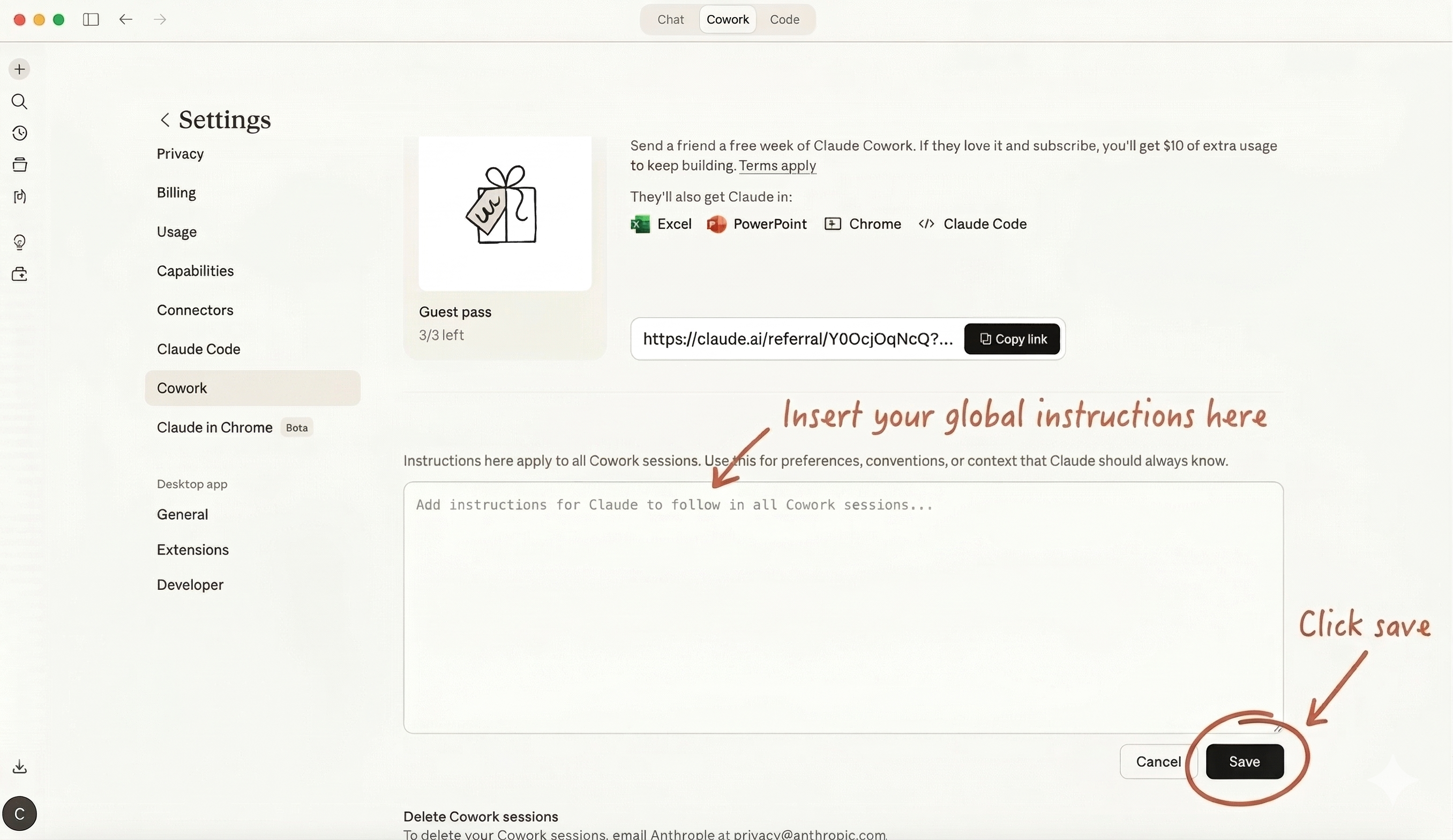
In Discovery, you told Claude about yourself. Now you're going to turn that into a set of rules Claude follows every time you open a new session. These are called Global Instructions — they live in Claude Desktop > Settings > Instructions and load automatically.
Start a new CoWork session for this section. Copy the prompt below and paste it in. Claude will read your Discovery notes from the previous session and use them to draft your instructions.
CoWork will walk you through the process, but once you have your Global Instructions drafted, here's a visual reference for getting them saved to your settings.
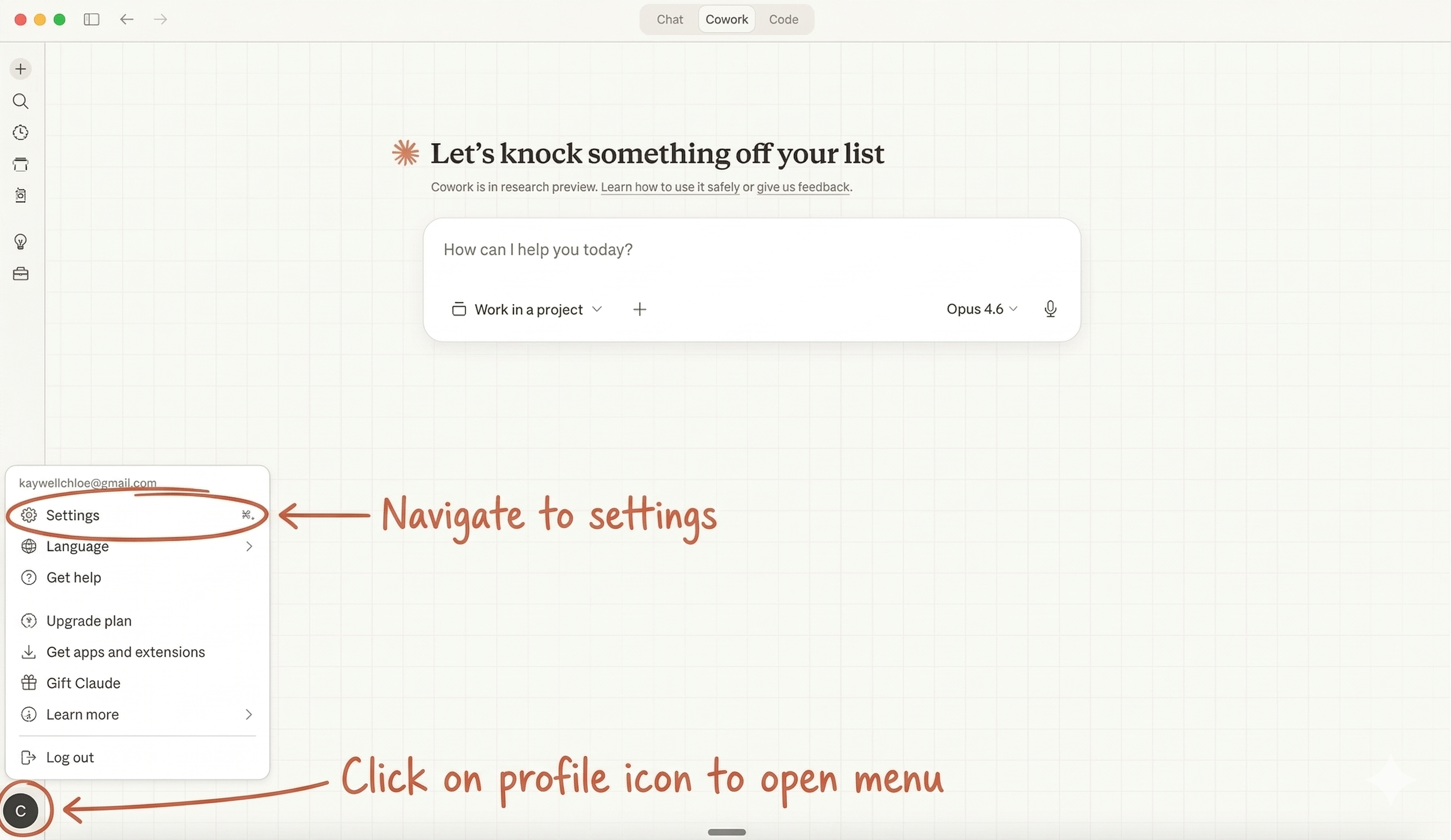
What to look for in Claude's draft
When Claude shows you its draft, these are the sections that make up a strong set of Global Instructions. Use this as a checklist to make sure nothing important is missing.
DIY template — if you want to build it yourself
If you'd rather write your Global Instructions manually instead of using the prompt above, copy this template into a new .md file in your workspace folder and fill in each section. (In CoWork, you can ask Claude: "Create a new file called GLOBAL-INSTRUCTIONS.md with this template.")
You'll see references to folders and files that don't exist yet (like memory/ and 04-archive/). That's fine — you'll build those in later sections. Everything connects.
## Who I Am
[1-2 sentences. Your name, what you do, where your files live.]

## How to Work With Me
- ALWAYS read CLAUDE.md first before starting any task
- For any non-trivial task: ask me clarifying questions BEFORE doing work
- Reference my folder structure — know where things go
- Check the memory/ folder for deep context on specific topics
- Use date prefixes (YYYY-MM-DD) for any time-sensitive files

## Output Style
- [Your preferred tone]
- [Your preferred format — markdown? bullets? prose?]
- Always end substantive work with a "Next Steps" section

## Standing Rules
- If you make a mistake: (1) fix it, (2) log it in CLAUDE.md,
  (3) update relevant memory files
- Never delete files — move to 04-archive/
- Check 03-resources/skills/ for custom skills before starting

## Quality Standard
- Re-read output before delivering. Check for accuracy, tone,
  completeness, and whether it answers what was asked.
- If unsure about a fact, say so.
Real-life example — see what a finished version looks like
This is from a real system. Yours will look different — the point is to see the level of specificity that makes Global Instructions useful.
## Who I Am
I'm Chloe Keywell. I'm leading AI upskilling across non-product
functions at Bloomberg LP and I'm actively job searching for roles
in the tech/AI industry. My second brain lives in the folder
you're connected to.

## How to Work With Me
- ALWAYS read CLAUDE.md first before starting any task
- For any non-trivial task: ask me clarifying questions BEFORE
  doing work
- Reference my folder structure (PARA method) — know where things go
- Check the `memory/` folder for deep context on specific topics
- Use date prefixes (YYYY-MM-DD) for any time-sensitive files

## Output Style
- Concise and direct — no corporate fluff
- Markdown by default
- Always end substantive work with a "Next Steps" section
- When writing for my job search: use tech/AI industry language,
  emphasize transferable skills from Bloomberg

## Standing Rules
- If I drop something in `00-inbox/`, process it: summarize, tag,
  and suggest where it belongs
- If you make a mistake or I correct you: (1) fix the mistake,
  (2) add the learning to "Corrections & Learnings" in CLAUDE.md
- When doing research, always cite sources and include dates
- For job-related tasks, keep a running log in
  `01-projects/job-search/`
- Never delete files — move to `04-archive/` instead
How Claude should behave. The rules it follows in every session — ask questions first, use your voice, check its work. This is what you just built.
Who you are. Your context, your people, your projects, your preferences. This is the knowledge base you'll build in the next section.
CLAUDE.md — The Master Memory File
Global Instructions tell Claude how to behave. CLAUDE.md tells Claude who you are. It's the single most important file in your system — it lives at the root of your workspace and Claude reads it automatically at the start of every session.
Start a new CoWork session for this section. Copy the prompt below and paste it in. Claude will read your Discovery notes and Global Instructions from the previous sessions and use them to draft your master memory file.
CoWork has a built-in feature called AskUserQuestion — it lets Claude show you a set of options to pick from before it starts working. Instead of guessing what you want and getting it half-right, Claude checks first. It looks like a little card with choices you can click.
This is especially useful for complex tasks like "plan a trip" or "draft an email" where there are a dozen ways Claude could go. One quick question up front saves you from a mediocre output you have to redo.
The paste prompt above already tells Claude to add this to your CLAUDE.md. Once it's in there, Claude will do this automatically on every task that needs clarification — you don't have to ask for it.
What to look for in Claude's draft
When Claude shows you the draft, check that it includes these sections. Some reference things you'll build in later steps (like memory files and folder structure) — that's expected. Claude will set up the links now and you'll fill them in as you go.
Keep it under ~150 lines. Detailed info goes in memory files (the next section). CLAUDE.md is the index, not the encyclopedia.
Be specific about what you hate. The "Things to Avoid" section is just as important as the rest. Telling Claude what NOT to do saves you from correcting the same mistakes over and over.
Update it over time. Paste this into any session: "Re-read CLAUDE.md and update it with anything new you've learned about me in this conversation."
Memory Files
CLAUDE.md is the overview — it tells Claude the big picture. Memory files go deeper. Each one is a detailed reference on a single topic (how you write, who's in your life, your career context). Claude only reads the ones it needs for the task at hand.
Without memory files, Claude forgets your preferences between sessions. With them, it already knows who the key people in your life are, how you actually sound in emails, and what your daily routine looks like — without you having to explain it every time.
As of 2026, CoWork also keeps its own memory automatically — saving useful facts, preferences, and working habits as you go, without you asking. The memory files in this section are still where you put the context you want Claude to read on purpose; auto memory fills in everything it picks up along the way. Want to see what it's saved? Just ask: "What do you remember about me?"
Start a new CoWork session for this section. The first prompt builds your most important memory file — your writing voice. This one takes the most time because you'll paste in real writing samples.
Real writing samples beat descriptions. One real email teaches Claude more about your voice than a paragraph of adjectives. Have a few recent emails or messages ready to paste in before you start.
Core Memory Files
Everyone should have these five. They cover the 80% of context Claude needs most often. Click any card to load its prompt below, then copy and paste it into CoWork.
writing-voice.md
How you actually sound — samples, quirks, banned words
people.md
Key people in your work and personal life
life-areas.md
Routine, hobbies, goals, personality
career-profile.md
Career history, target roles, job search
glossary.md
Acronyms, nicknames, jargon, shorthand
You can stay in the same session and keep going through each file, or come back later — just paste the next prompt when you're ready.
Folder Structure (PARA)
You've built your instruction files and memory files. Now Claude needs to know where to put things — and where to find them.
Without a folder structure, Claude dumps everything into one place. Your job search notes mix with your grocery lists. Files pile up with no logic. And when Claude needs to find something you made three weeks ago, it can't. A folder structure is like giving Claude a filing cabinet with labeled drawers — it always knows where things go and where to look.
PARA is just a way to organize folders by purpose: active Projects, ongoing Areas of your life, Resources you reference, and an Archive for anything you're done with.
Start a new CoWork session for this section. Copy the prompt below and paste it in. Claude will read your existing files and build the folder structure around them.
00-inbox/          → Drop zone. Unsorted captures, raw ideas.
01-projects/       → Active projects with goals and end dates.
   [project-name]/ → One folder per project.
02-areas/          → Ongoing life areas. No end date. (Career, health, etc.)
   [area-name]/    → One folder per area.
03-resources/      → Reference material. Templates, skills, research.
   skills/         → Custom Claude skills (see Part 7).
   templates/      → Reusable templates for common outputs.
   skill-feedback/ → Logs of what worked per skill.
04-archive/        → Done or dormant. Nothing gets deleted.
05-automations/    → Automation configs and logs.
   logs/           → Output logs from scheduled tasks.
memory/            → Deep context files Claude reads.
Intermission
Go touch grass. Seriously.
You just built a working second brain. Claude knows who you are, how you think, and where everything goes. That's the hard part — and it's done.
Everything from here on is optional — but it's where things get really fun. These sections build on the foundation you just created. Come back whenever you're ready.
Session Continuity
You've got a second brain. But right now, every time you start a new session, Claude doesn't know what happened in the last one. These two simple files fix that — they're the handoff notes (like leaving a note for the next person who sits down at your desk) that keep everything connected.
Start a new CoWork session for this section. Copy the prompt below and paste it in. Claude will set up the files that let it pick up where it left off between sessions.
session-log.md
The note Claude leaves for itself between sessions. At the end of every session, Claude writes what happened, what's pending, and any decisions made. At the start of the next session, Claude reads it and picks up where it left off.
Sections: Date, session type, what happened, completed items, key decisions, pending items, files modified, what next session could do.
TASKS.md
A simple, always-current task list. Claude reads and writes to it. Sections: Active, Waiting On, Someday, Done. Check anytime by asking "what's on my plate?"
What Claude will add to your CLAUDE.md:
## Session Continuity
- At the END of every session: Write a shift handover to session-log.md
- At the START of every session: Read session-log.md before beginning work
Connectors
You just set up session continuity — Claude can pick up where it left off. Now let's give it access to the tools you already use every day. When Claude can read your email, check your calendar, and search your files, it stops being a smart assistant and starts being a real teammate.
A connector is how Claude gets permission to access an outside service — like Gmail, Google Calendar, or Notion. Think of it like giving a new coworker login access to your tools on their first day. Once connected, Claude can read your emails, check your schedule, search your files, and more — without you having to copy-paste anything into the chat.
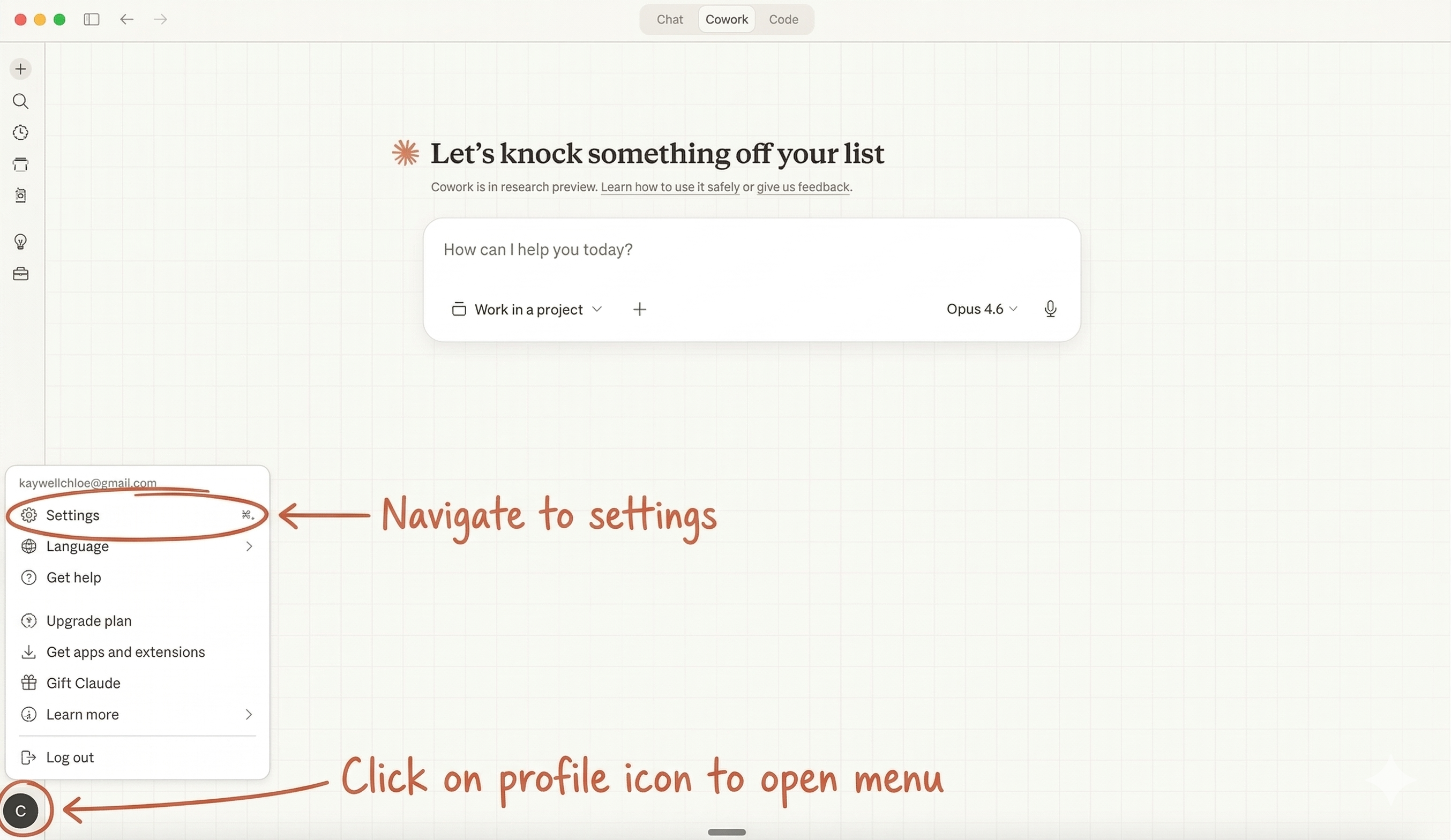
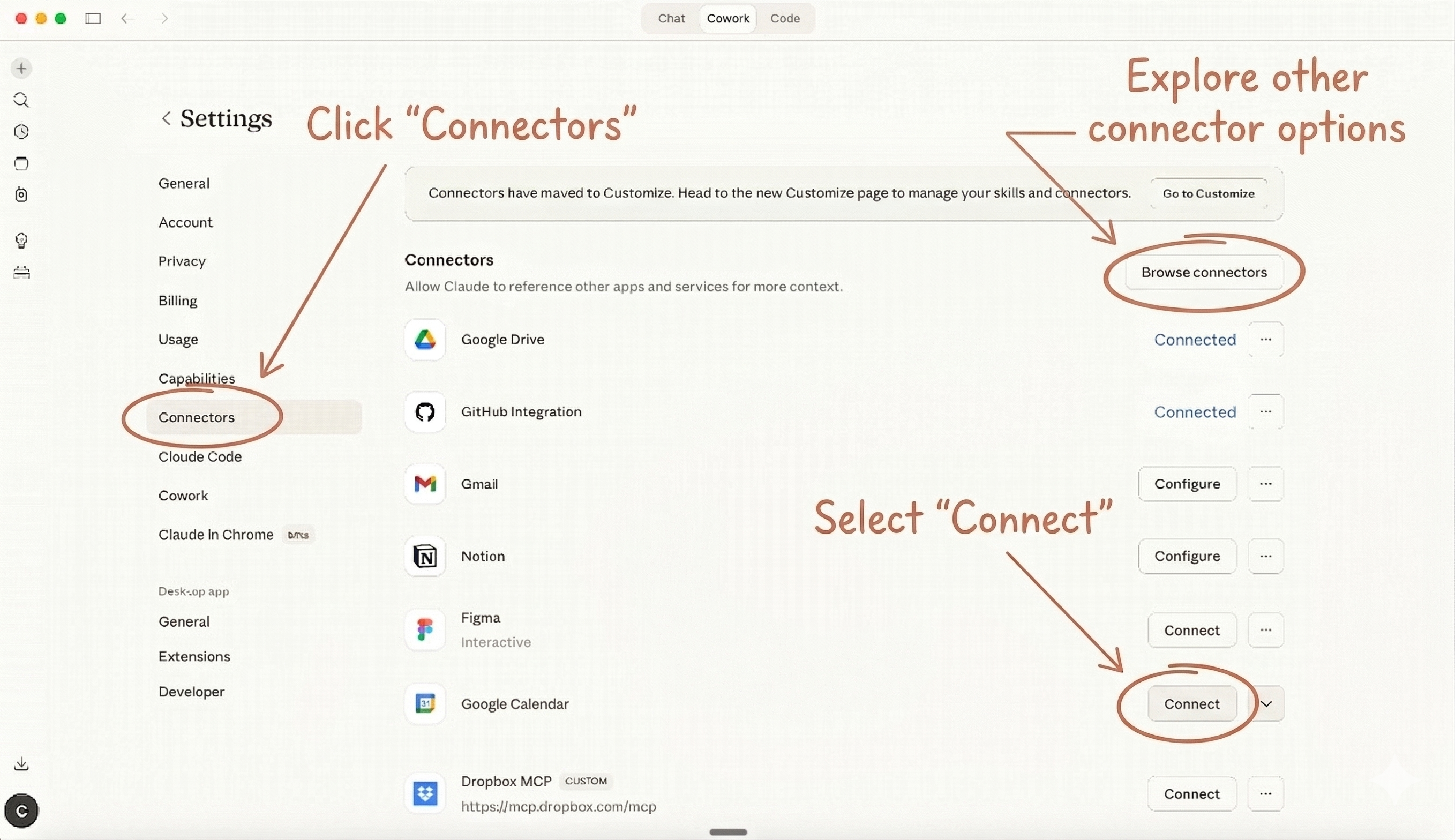
You connect these through CoWork's settings, not through a chat prompt. Claude can't connect them for you — you have to grant access yourself. But once you do, every session after that has access automatically.
How to Connect a Tool
This happens in CoWork's settings, outside of any chat session. Here's the flow:
Steps 1–2
Steps 3–4
Which Connectors to Start With
There are a lot of connectors available, but don't try to connect everything at once. Start with the ones that give you the most value immediately. You can always add more later.
| Service | What It Unlocks | Priority |
|---|---|---|
| Gmail | Inbox triage, email drafting, morning briefings, thread search | Start here |
| Google Calendar | Meeting prep, daily agenda, scheduling awareness | Start here |
| Google Drive | Document access, file search, shared doc references | Start here |
| Notion | Database access, quick capture from phone, cross-platform sync | Great if you use it |
| Slack | Channel summaries, message search, catch up on threads | Great if you use it |
| GitHub / Linear | Issue tracking, PR reviews, project management | If you're technical |
This isn't the full list — CoWork regularly adds new connectors. Check the settings page to see what's currently available. If you use a tool and it's not listed, it might show up soon.
After Connecting: Verify With Claude
Once you've connected your tools in settings, open a new CoWork session and paste the prompt below. Claude will verify everything is working and update your system files.
The prompt below includes example verification tasks for Gmail, Calendar, Drive, and Notion. Edit that part to match whatever you actually connected. The idea is simple: give Claude a small task that would only work if the connector is live. Connected Slack? Ask it to pull recent messages from a channel. Connected Spotify? Ask it what's currently playing. Any quick task that proves the connection works.
Bonus
Level Up
Quick Capture Bridge
click to expand
This is for people who want to send tasks to Claude when they're away from their computer — like from your phone during the day. It's totally optional, and your system works great without it. But if you want that "fire off a task on the subway and come home to finished work" workflow, this is how.
For quick capture to work, Claude Desktop just needs to be open on your laptop — you don't have to be sitting there or watching it. Leave it running in the background, go about your day, and send tasks from your phone whenever. Claude handles them automatically. The only thing that breaks it is if your laptop is closed or Claude Desktop is quit entirely.
There are a few ways to set up quick capture. Pick the one that fits your setup best:
How this works: Click one of the three options below. A ready-to-paste prompt will appear underneath it. Copy that prompt, open a new CoWork session, and paste it in. Claude will walk you through the rest.
Dispatch
Send tasks straight from your phone to Claude. Built into CoWork — everyone gets it.
Notion Hub
Drop notes in a Notion page from your phone. Claude checks it each session.
Apple Notes
Jot notes on your phone. Claude reads them via the Apple Notes connector.
These aren't the only options — any app that Claude has a connector for can work as a capture tool. The key idea is: drop something in from your phone, and Claude processes it when you're back at your computer.
Custom Skills
You've connected your tools — Claude can now read your email, check your calendar, and search your files. Now let's teach it HOW to do specific tasks the way you want them done.
A skill is a set of instructions that lives in a file in your workspace. Think of it like a recipe card — it tells Claude exactly how to do a specific task: what steps to follow, what tone to use, which of your memory files to read, what format the output should be in, and what mistakes to avoid.
Skills take what Claude already knows about you — your voice, your preferences, your routine — and turn it into a repeatable workflow. Like the difference between telling a new hire "figure out how to write emails" vs. handing them a style guide and three examples.
You don't write the skill yourself — Claude builds it for you based on a conversation. You just answer questions about how you want things done, review the draft, and approve it.
You don't need Gmail, Calendar, or any connected tools for skills to work. Claude already knows your writing voice, your preferences, your career context, and your daily routine from your memory files — that's enough to draft emails, do research, plan trips, and more. Connected tools make skills even more powerful, but a skill without connectors is still far better than no skill at all.
Start a new CoWork session for this section. Copy the prompt below and paste it in. Claude will interview you to figure out which skill to build first, then build it with you.
Claude saves your skills to 03-resources/skills/ in your workspace folder. Each skill gets its own subfolder with a SKILL.md file inside. You don't need to create anything manually — Claude handles all of this when you run the prompt above.
Once a skill is built, you don't need to do anything special to activate it. Just talk to Claude like you normally would — the trigger phrases built into the skill file handle the rest. For example:
Claude recognizes what you're asking, finds the right skill, and follows the process you defined — your voice, your format, your preferences. No special commands or syntax required.
Anatomy of a Skill File click to expand
You don't need to memorize any of this — Claude builds the entire skill file for you. This is just so you know what's inside if you ever want to peek under the hood or tweak something.
Every skill has a built-in feedback mechanism — it learns from your corrections and gets better over time.
Before running: Claude checks past corrections. After running: it collects your feedback. When you correct something: (a) fixes the output, (b) logs the feedback, (c) proposes a skill update if there's a pattern.
After a few weeks, mediocre skills become excellent ones. The paste prompt already includes this — just know it's working in the background.
Scheduled Tasks
You've built the knowledge base and the skills. Now let's put them on autopilot. Scheduled tasks are Claude sessions that run automatically — they do work while you're away so things are ready when you sit down.
A scheduled task is a CoWork session that runs on a timer without you having to start it. Think of it like setting a coffee maker the night before — you set it once, and every morning the work is already done when you show up.
For example: a morning briefing that summarizes your email and calendar before you wake up, or a weekly review that recaps your progress every Friday. You tell Claude what to do, when to do it, and where to save the results — then it just runs.
Start a new CoWork session for this section. Copy the prompt below and paste it in. Claude will figure out which automations make sense for your routine.
Scheduled tasks only run when your computer is awake and Claude Desktop is open. If your laptop is closed or Claude isn't running, the task misses its window. The easiest fix: just leave Claude Desktop open in the background and let your laptop sleep on its own schedule.
Scheduled tasks are managed by CoWork itself — you can see and edit them in Settings → Scheduled Tasks. Each task has a name, a schedule (time + days), and a prompt that tells Claude what to do. The output gets saved wherever the prompt specifies.
Automations to Consider
Morning Briefing
Summarizes your email, walks through today's calendar with context on each meeting and who you're meeting with, flags priorities, and surfaces any relevant news. Runs every weekday, 30-60 minutes before you start work.
Weekly Review
End-of-week checkpoint: what got done, what's stalled, project status updates, memory file refresh suggestions, system health check on your skills and automations, and priorities for next week.
Inbox Digest
Scans your email and produces a prioritized digest timed for when you usually sit down with Claude. Groups emails into tiers so you can batch-process responses instead of scrolling through everything.
Industry Tracker
Tracks news, job postings, and company updates in your target industry or area of interest. Runs weekly so you stay informed without having to manually check dozens of sources.
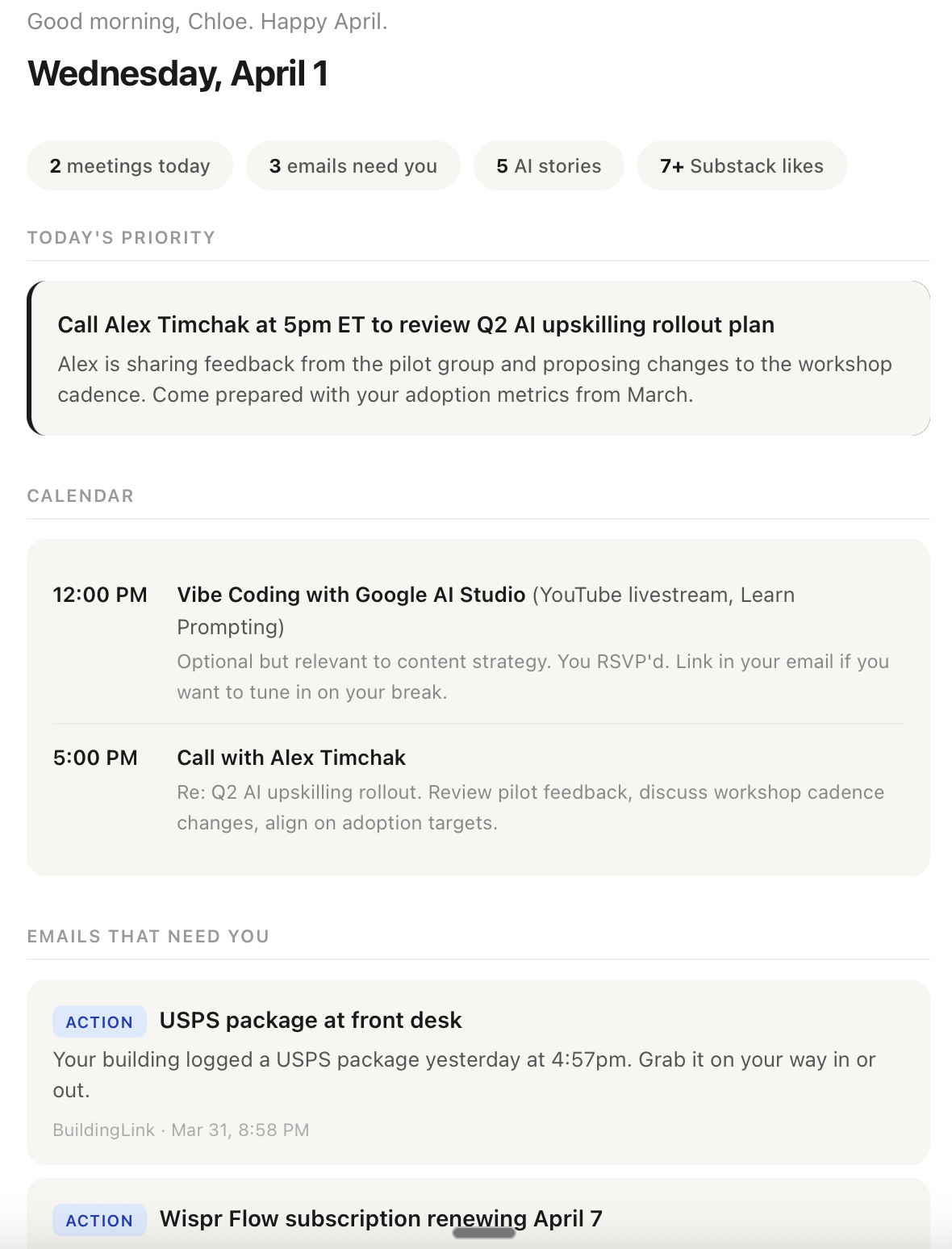
A screenshot from my daily morning briefing
I built an automation that reads all my newsletters, summarizes them, and delivers a single digest so I never have to scroll through a cluttered inbox again. I wrote about how it works: How I Got an AI to Read My Newsletters For Me.
Level Up
Making Automations Reliable
click to expand
Your first automations will probably need some tuning. Here's how to get them running smoothly:
- Be specific in the prompt. Don't just say "check my email." Tell it exactly what to scan, how to prioritize, what format, and where to save the results.
- Point to your skills. If you've built an Inbox Triage skill, tell the automation to use it — that way it follows the same rules every time.
- Check the output for the first few days. Automations need tuning early on. Review what they produce, correct mistakes, and they'll improve quickly.
Live Artifacts
Skills give Claude workflows. Scheduled tasks make work happen while you're away. Live Artifacts are the third piece — living dashboards Claude builds for you that stay up to date.
A Live Artifact is a persistent, interactive page — a tracker, a dashboard, a reference — that lives in its own tab in CoWork. Unlike a normal chat answer, it doesn't disappear when the conversation ends. Open it next week and it refreshes with current data from your connected tools and workspace files. Think a weekly metrics view, a project tracker, or a reading queue you keep coming back to.
Try it in any CoWork session. Describe the dashboard you want, and Claude builds it and saves it to your Live Artifacts tab. Paste the prompt below to start.
Live Artifacts live on your computer and refresh from whatever they're connected to each time you open them. If an artifact pulls from a connector that can change your data, double-check what it's doing — artifacts can use your approved connectors without asking each time.
Ongoing Maintenance
You've built everything. Now let's make sure it stays useful. A system is only as good as its maintenance — here's the rhythm that keeps it sharp.
This isn't busywork. Maintenance just means Claude gets better over time instead of staying the same. Most of it happens automatically — when you correct a mistake, Claude logs it and learns. When a scheduled task runs, it checks for updates.
Your only real job is to correct Claude when it gets something wrong, and do a quick weekly check-in to make sure nothing's stalled. That's it.
Your Maintenance Rhythm
Happens Automatically
Claude reads session-log.md to pick up where you left off, checks TASKS.md for what's on your plate, and scans quick capture for anything you dropped in during the day. When you correct a mistake, Claude logs it and learns. You don't need to do anything special — just use the system.
5-Minute Check-In
Once a week (or set up a scheduled task to do it for you): review what got done, flag anything that's stalled, refresh memory files if something changed in your life, check if your skills and automations are working well. This is your system tune-up.
Quick Audit
Skim CLAUDE.md — is it still accurate? Archive any completed projects. Check if there's a manual workflow you keep repeating that should become a skill. This takes 10 minutes and keeps the system from getting stale.
This is the single most important part of maintenance. Every time Claude gets something wrong, just tell it. Claude will: (1) fix the mistake, (2) log it in CLAUDE.md with the date so it doesn't happen again, (3) check if the mistake reveals something new about you and update the relevant memory file, and (4) check if a skill needs updating and propose changes.
You don't need to manage this process — just correct Claude when it's wrong and it handles the rest. Over time, mistakes become rare because Claude is learning from every correction.
Your Graduation Step
Once you've been using the system for a few sessions and things feel solid, create a personal reference doc that summarizes how everything works. This is the doc you'd reread if you ever forget how your system is set up.
Start a new CoWork session for this section. Copy the prompt below and paste it in.
Your Step-by-Step Setup Flow
- Session 1Discovery. Have the discovery conversation with Claude. Don't build anything yet. Just talk. (Part 0)
- Session 2Global Instructions + CLAUDE.md. Set up how Claude behaves, then create the master context file it reads every session. (Parts 1-2)
- Session 3Memory Files. Build writing-voice.md first (with real samples), then people.md, life-areas.md, glossary.md. (Part 3)
- Session 3-4Additional Memory + Folder Structure. Build career-profile.md and any optional memory files, then set up your PARA folder structure. (Parts 3-4)
- Session 4Session Continuity. Set up session-log.md and TASKS.md so Claude picks up where it left off. (Part 5)
- Session 5Connectors + Quick Capture. Connect your tools (Gmail, Calendar, etc.) and set up a way to send tasks from your phone. (Part 6)
- Session 5-6Custom Skills. Build your first 1-2 custom skills for your most common tasks. (Part 7)
- Session 6-7Scheduled Tasks. Set up automations that run while you're away — morning briefing, weekly review. (Part 8)
- Session 7Maintenance + Getting Started guide. Learn the maintenance rhythm, then write your personal GETTING-STARTED.md reference doc. (Part 9)
- OngoingRefine. Use the system. Correct mistakes. Let it learn. It gets better every session.
You made it to the end. I'm impressed.
I'm Chloe — I built this guide while learning AI out loud. If you found it useful, here's where to find more of whatever this is.
Get the AI Mega Daily Digest
Want my daily newsletter? Send an email to keywellchloe@gmail.com with the subject line "AI Mega Daily Digest" — no body text needed — and I'll get you on the list.